Part 1. Backing up Website Files
a. Log in to your cPanel dashboard.
b. Locate the Files section and click on File Manager.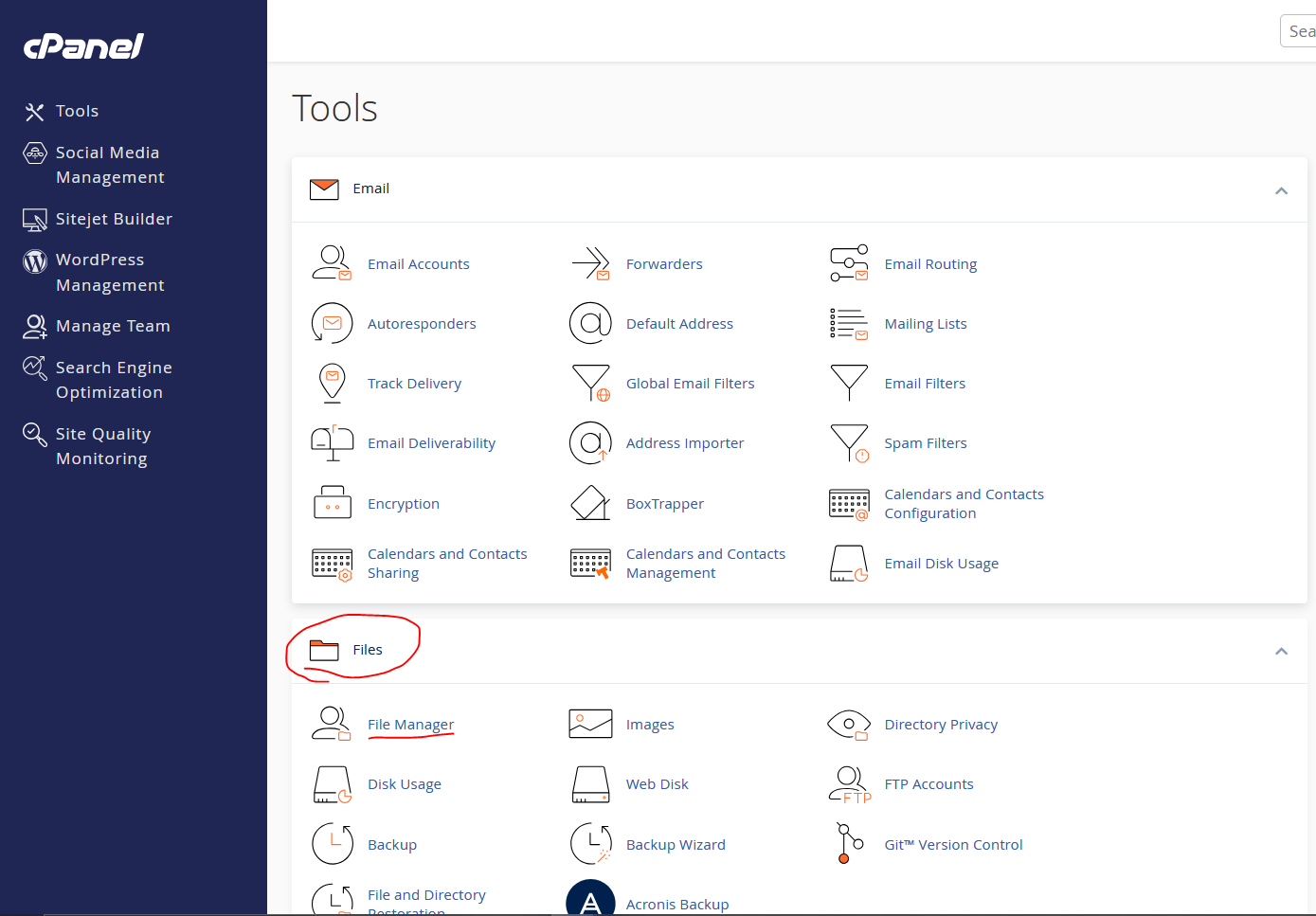
c. Navigate to your WordPress root directory (usually public_html).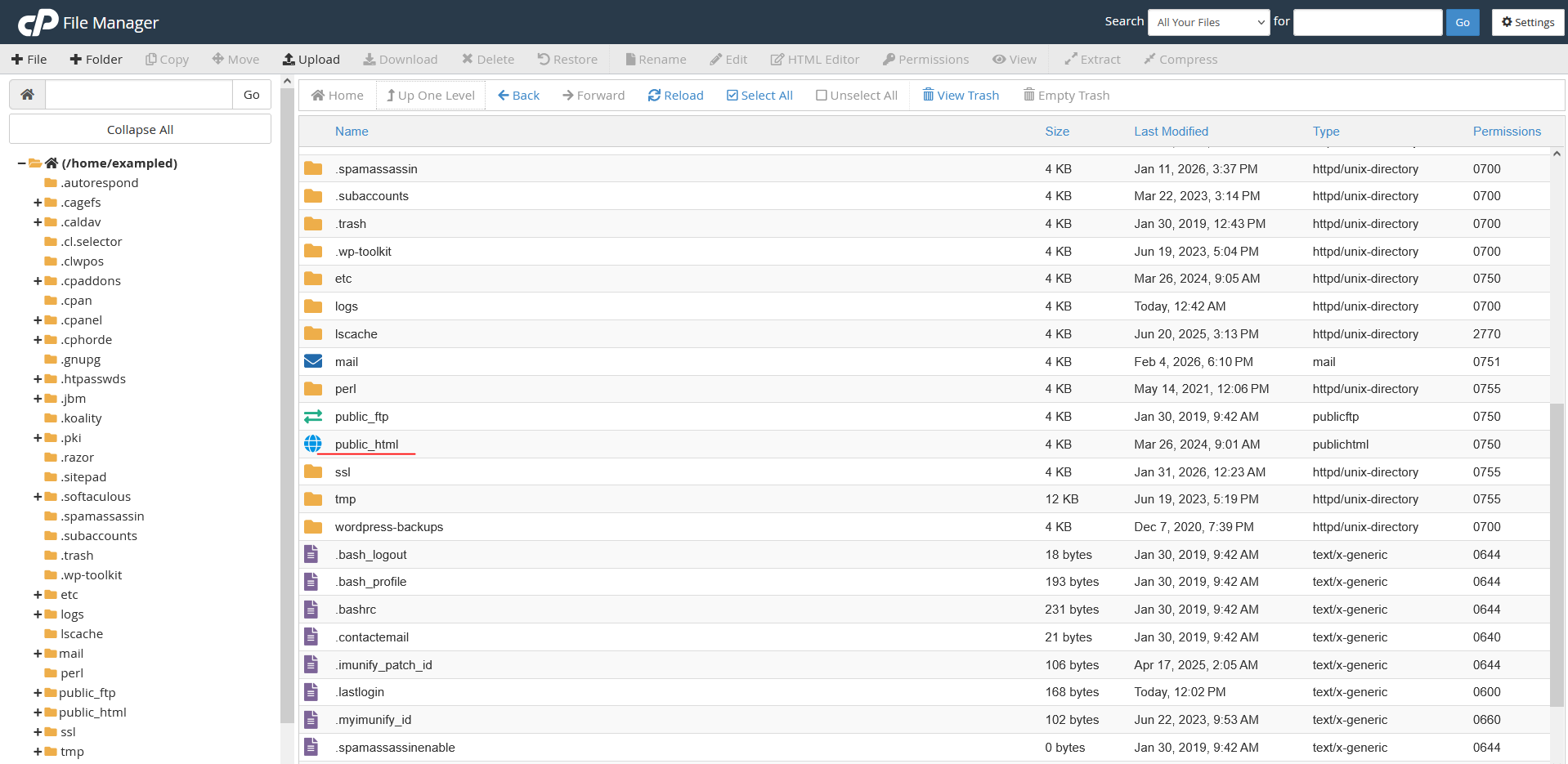
d. Select all files and folders. Click Compress in the top toolbar. (Deselect any subdirectories and files that aren't part of the Website)
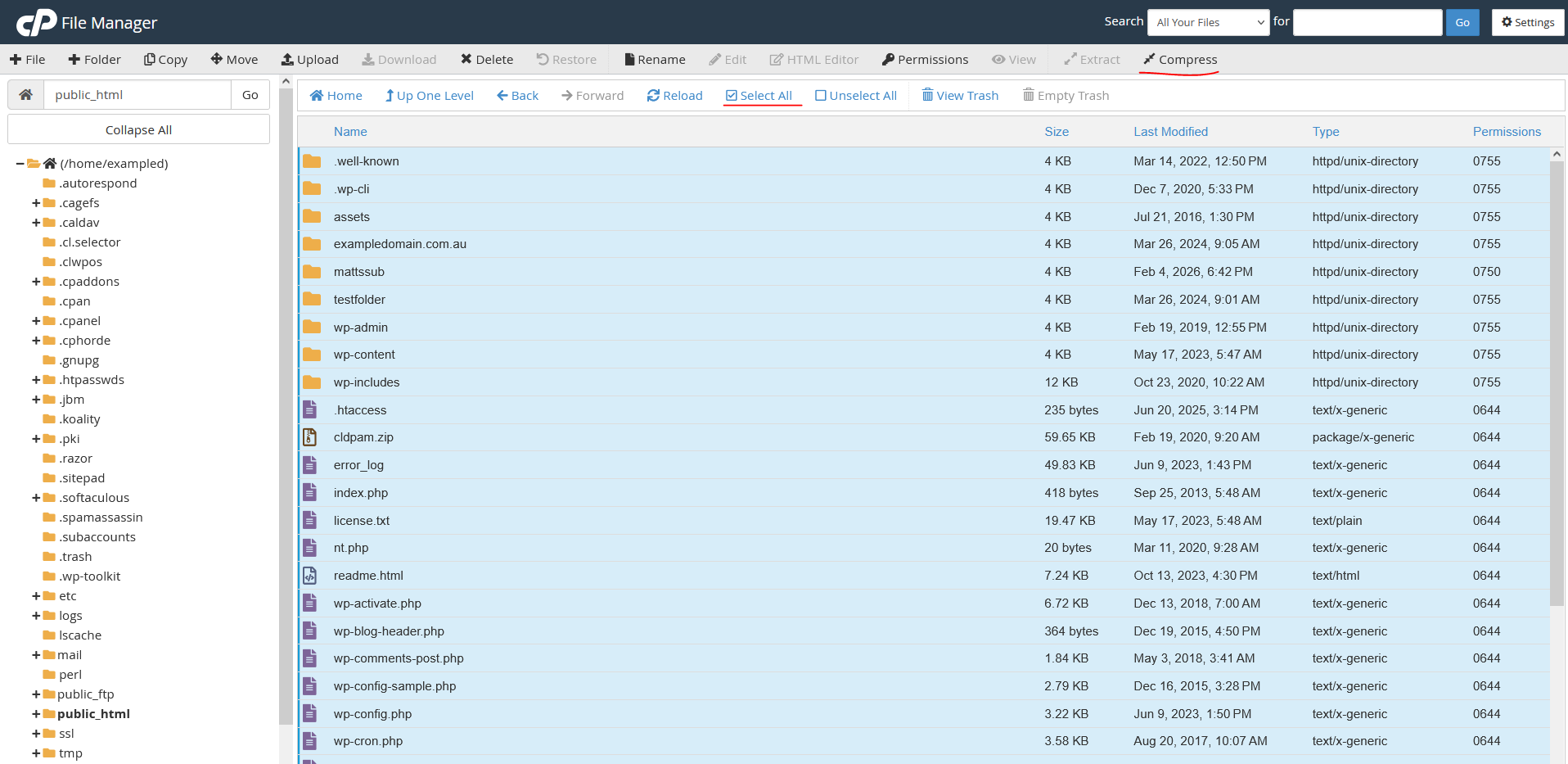
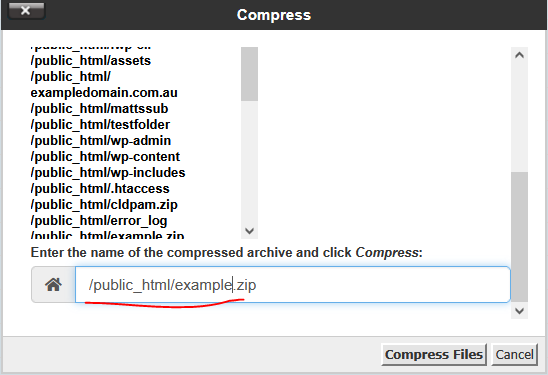
e. Choose Zip Archive and name the file (e.g., wp_files_backup_Feb_2026.zip) and click Compress Files.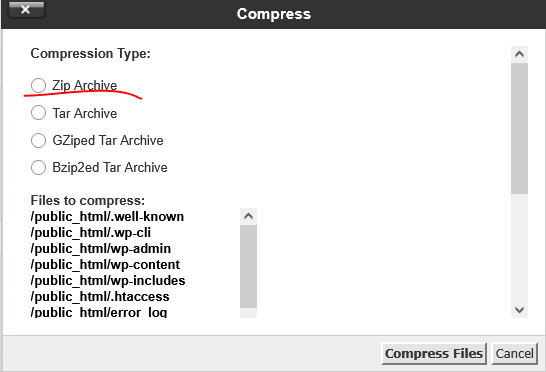
f. Once the process finishes, select the new .zip file and click Download to save it to your local machine.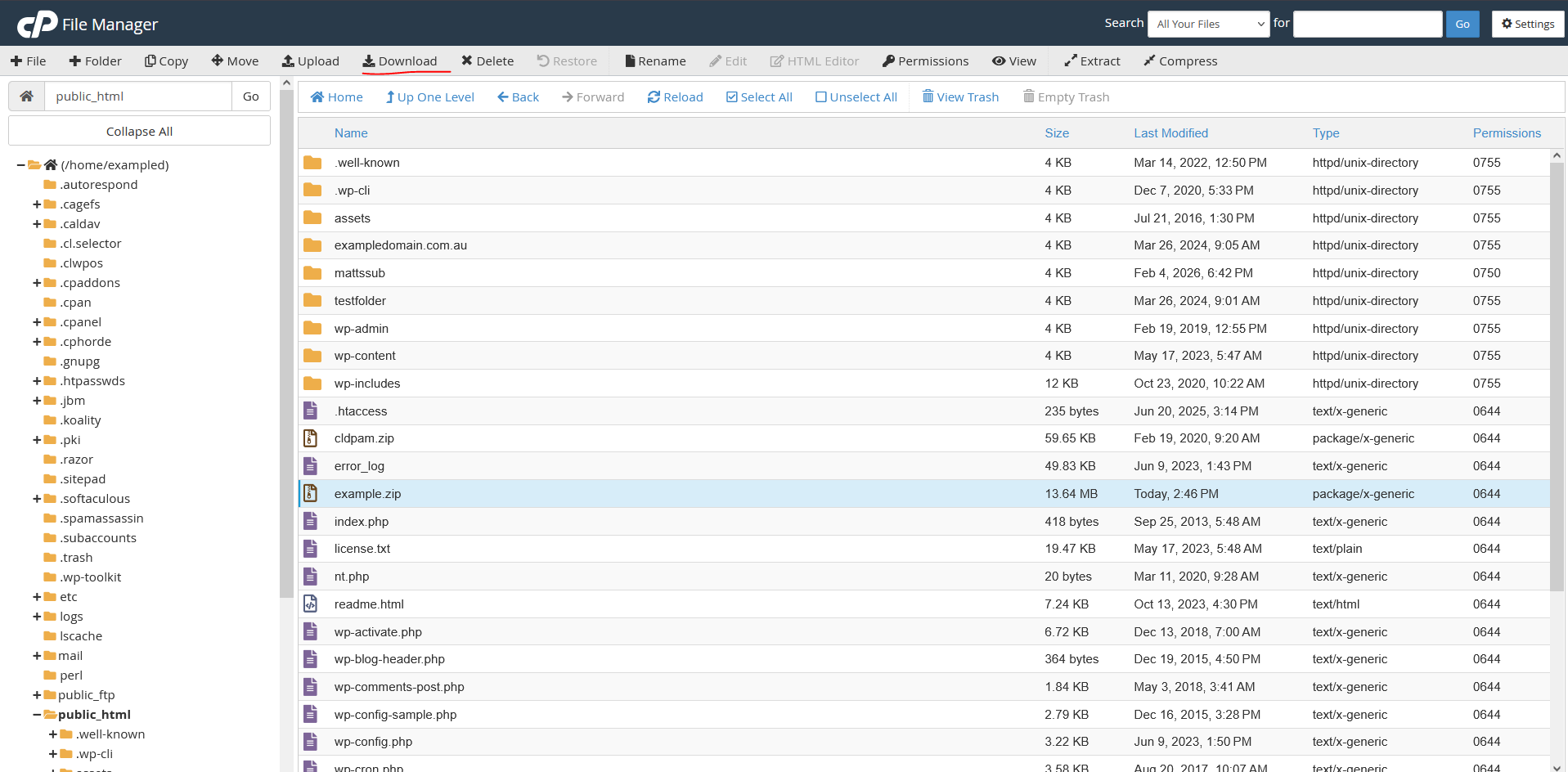
Part 2. Backing up the Database (phpMyAdmin)
Before you start, if you aren't sure which database belongs to this specific WordPress install, check your wp-config.php file in the File Manager for the DB_NAME defined line.
a. Return to the cPanel home screen and find the Databases section, click on phpMyAdmin.
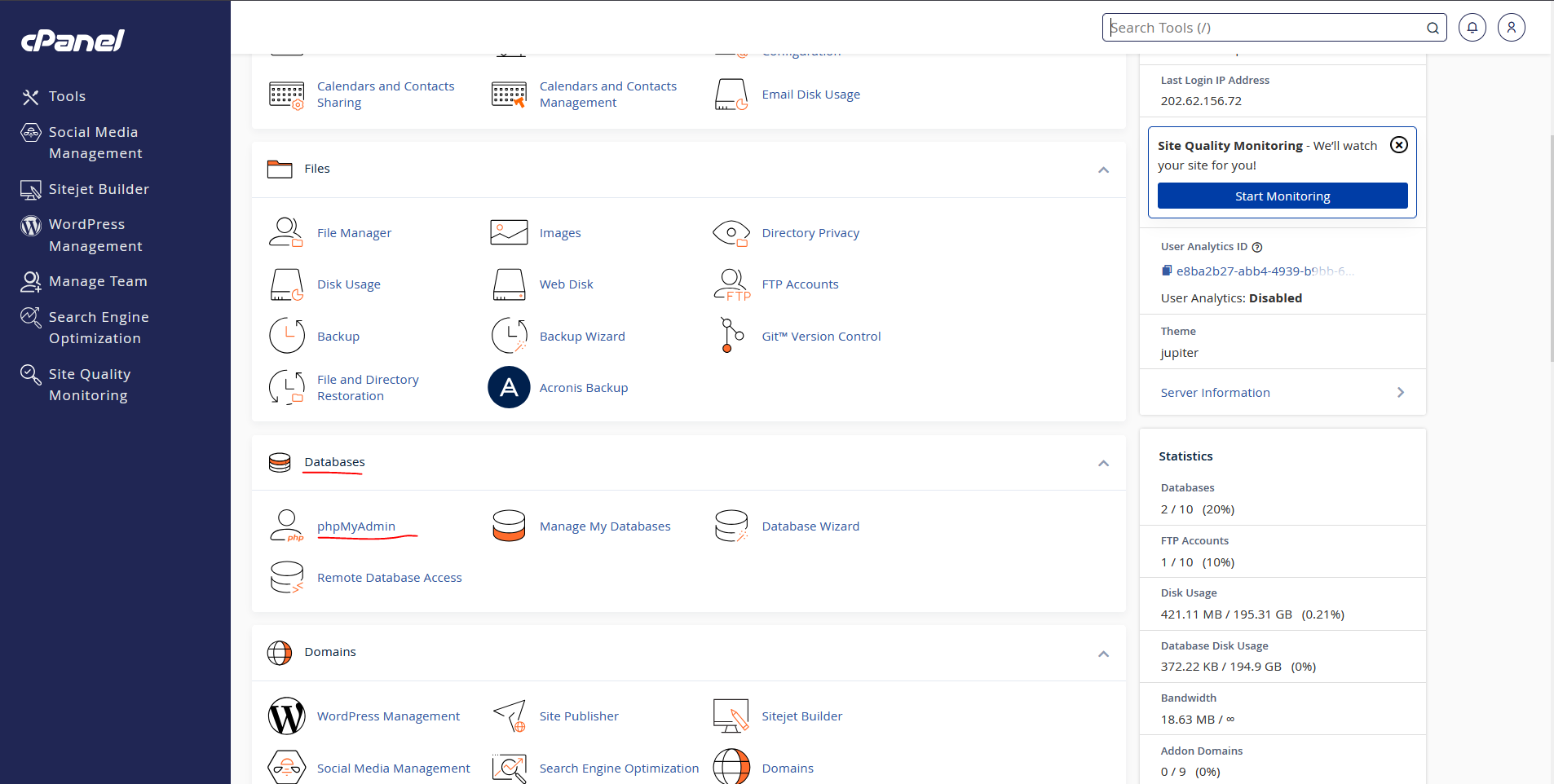
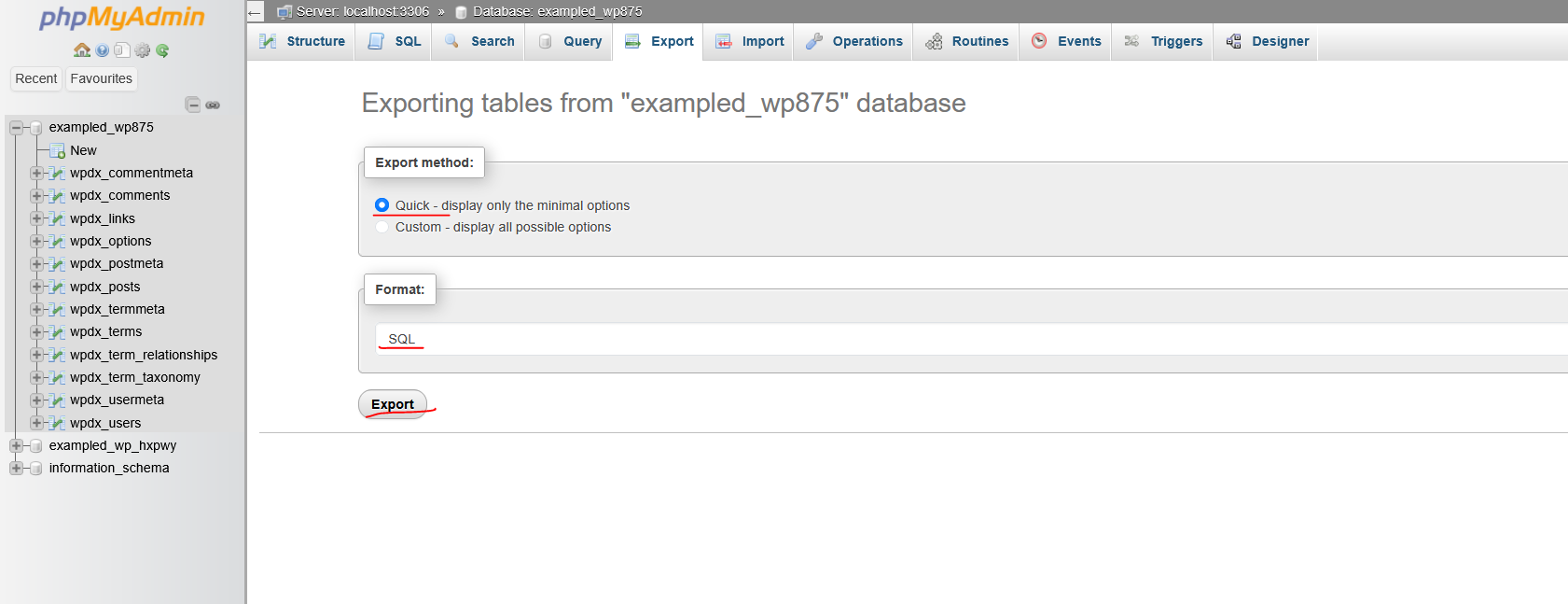
b. On the left-hand sidebar, click the name of the database you want to back up, click the Export tab at the top of the page.
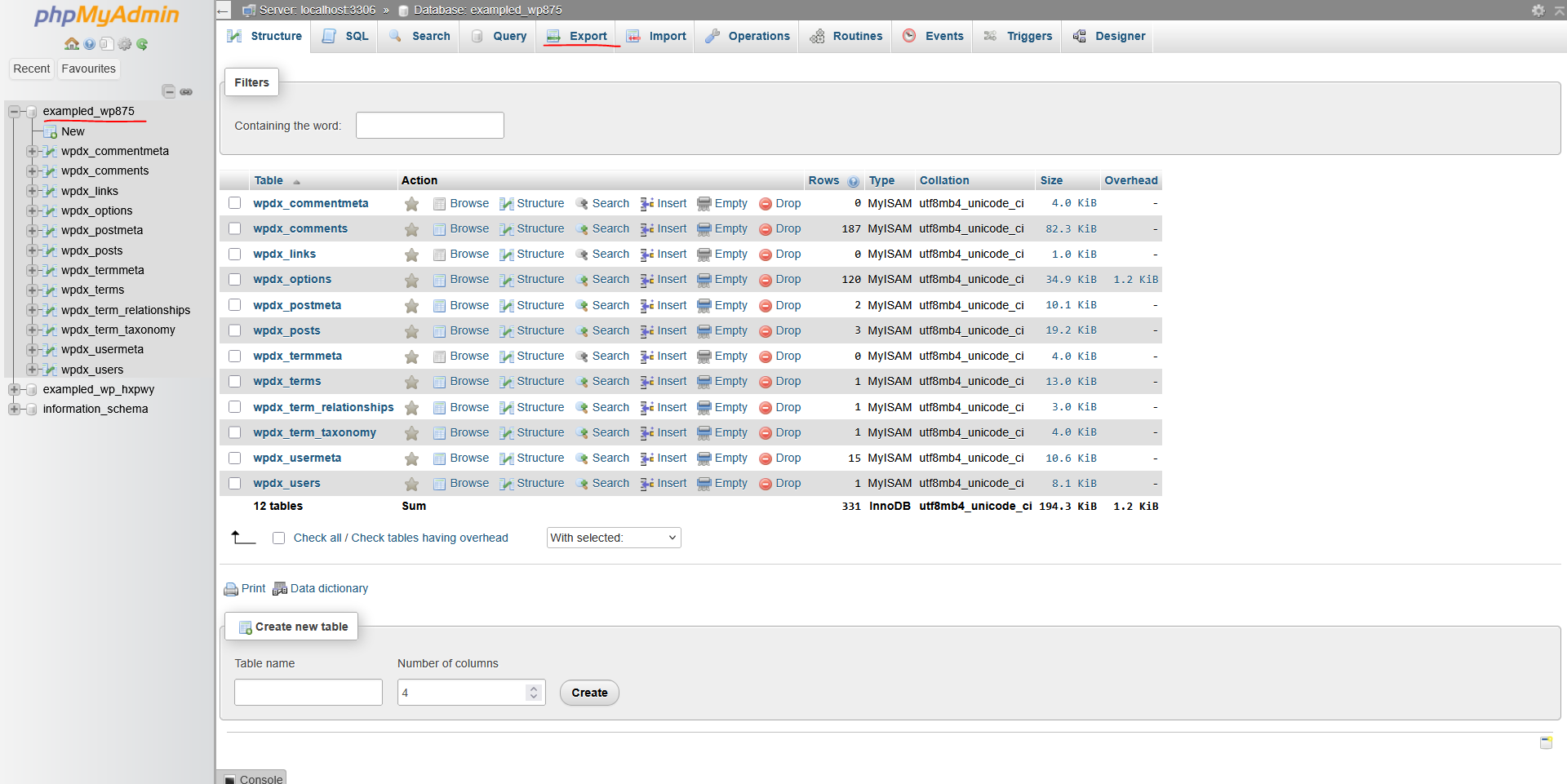
c. Select the Quick export method and ensure the format is set to SQL, click Go (or Export). The .sql file will automatically download to your computer.