(1) Type "mail" into the taskbar search field.

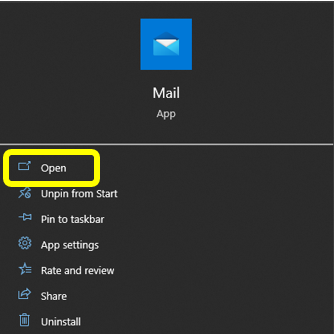
(2) Select and open the "Mail App"
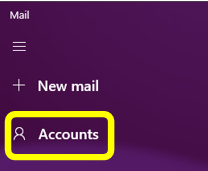
(3) On the top left hand side, select "Accounts"
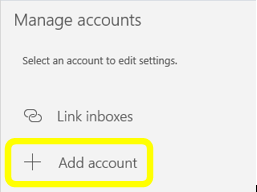
(4) On the top right hand side under Manage Accounts,
select "+ Add Account"
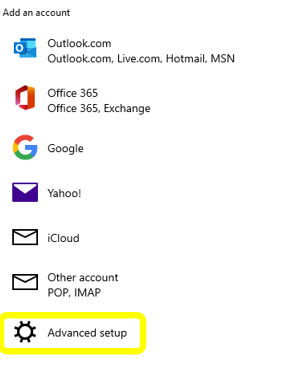
(5) On the Add an account menu, select "Advanced
setup"
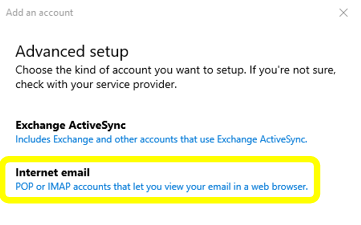
(6) On the Advanced setup menu, select
"POP or IMAP"
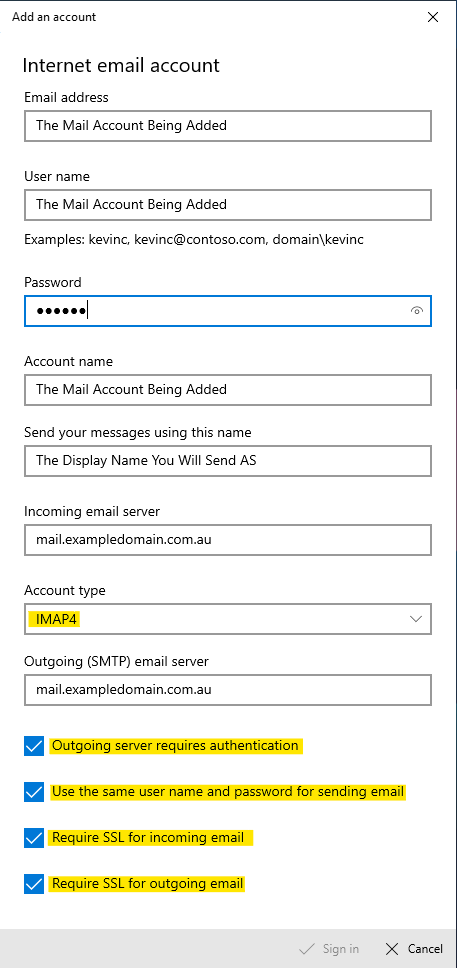
(7) On the Internet email account menu.
Enter the Email address into the following text fields;
(1) Email Address
(2) User name
(3) Account name
Enter the password set or provided.
Enter The incoming and Outgoing email server.
This Will Be (mail.) The Domain Name you Have purchased.
Select Account type IMAP.
And sign in.
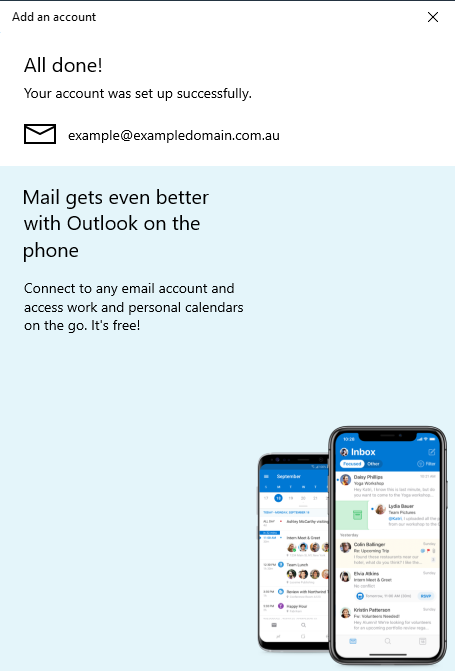
(8) A successfully added account will display the following.