
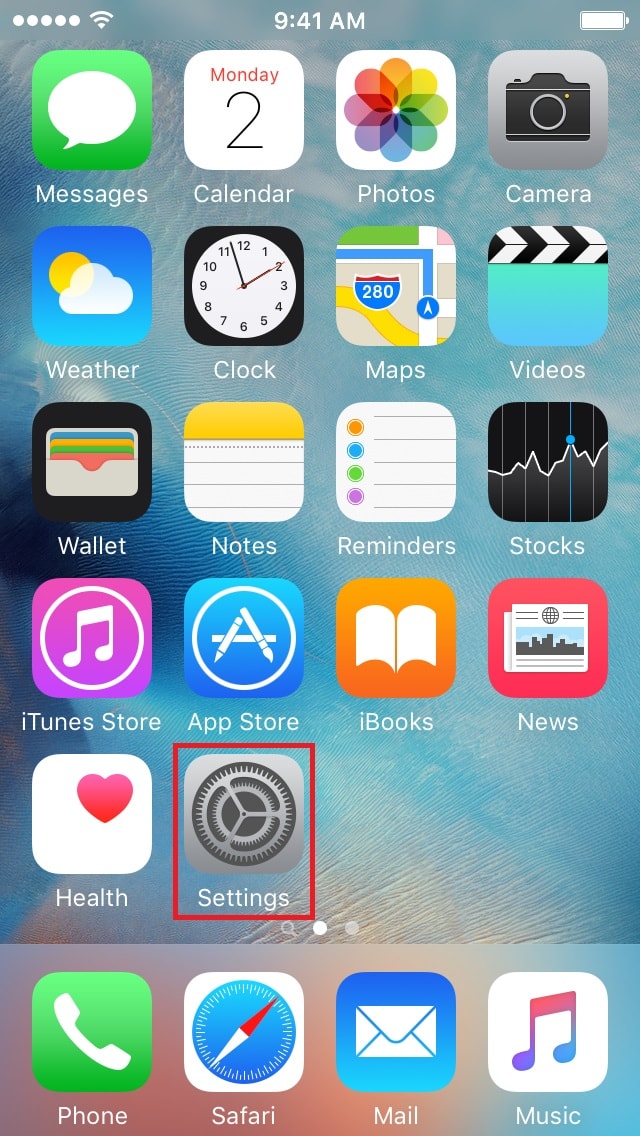
- Open the Settings application.
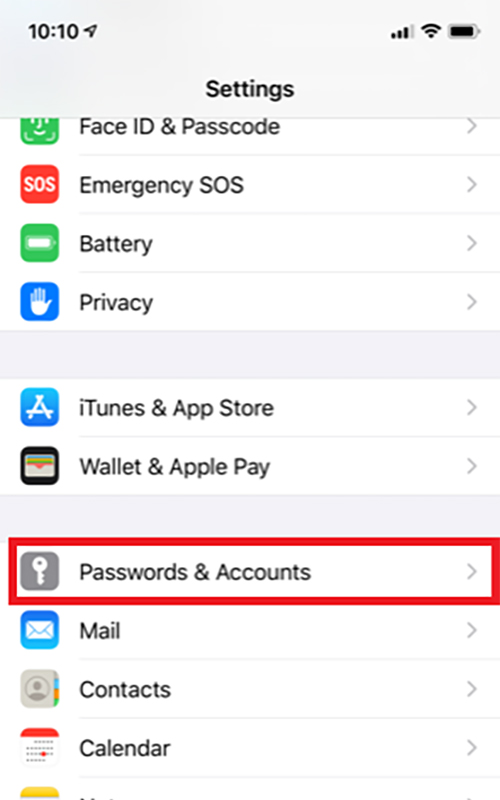
- Scroll down to Mail, Contacts and Calendars and proceed to tap on it.
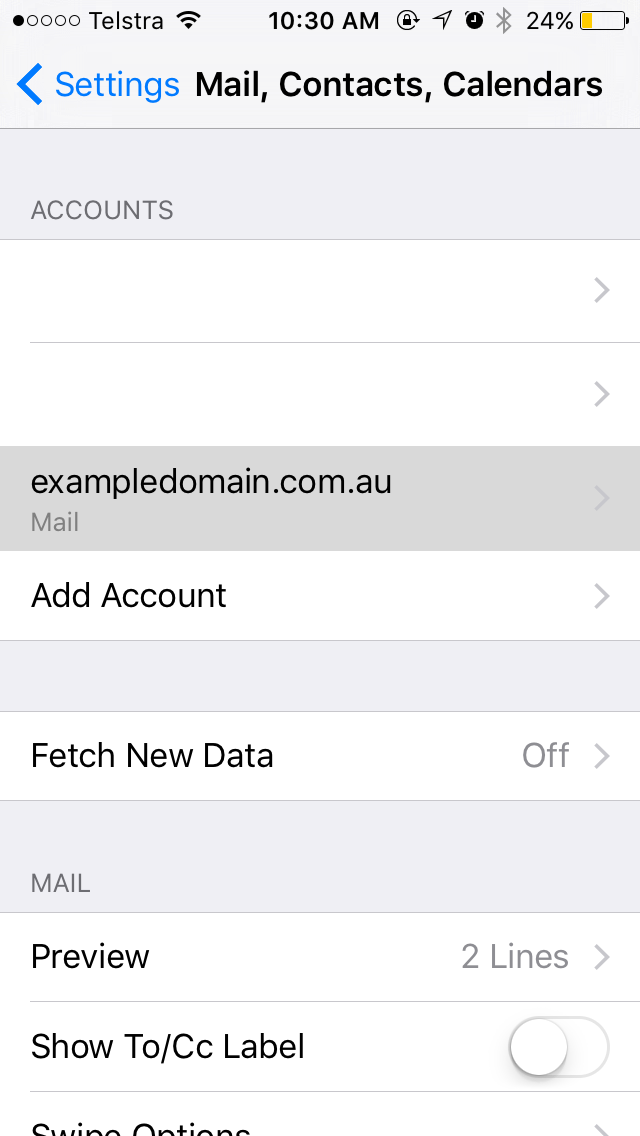
- Tap on your IMAP account.
- Tap on Account.

- Tap on Advanced.

- Select the Drafts Mailbox under Mailbox Behaviours.

- Move it from Drafts under On My iPhone to Drafts under On the Server.

- Repeat the same process with Sent...

...and Deleted.
Your mail will now mainly exist on the server, with no discrepancies between your iPhone and other devices.
